Slack
The Antenna app for Slack keeps your team informed with automated notifications, digests, and reminders across code review and deployment workflows.
Setup
If you’re new to Antenna, you will need to first create an account and connect to your Git provider.
Next, connect Slack from your organization’s settings. Select the Connected apps tab in the navigation menu and click Connect Slack. You will be redirected to Slack where you can choose your workspace and review permissions before installing the app. You can also install directly from the Slack marketplace .
Permissions
Our integration for Slack requests the minimum permissions required to show open pull requests, create channels for code reviews, and notify team members of work that needs attention. We do not read any of your team’s messages, aside from commands related to the Antenna app.
Permissions we request include:
- Send messages: We send messages as @antenna.dev to display notifications and digests.
- Commands: Any Slack users in a workspace can use commands for our app. You can view a list of available commands on our app listing .
- Create public channels: We create new channels when you choose to start a group review of an open pull request.
You can learn more about our security practices and data handling in our security overview .
Features
Deployment previews
When you’re ready to ship, send a preview of your upcoming deployments to team members in Slack.
We automatically detect how your pull requests are deployed. Select a channel you want to notify of an upcoming deployment and we’ll send a notification to your team with pull requests that are ready to be deployed.
Digests
Share updates with your team and see how your team is tracking against your objectives.
Subscribe to team digests to get a daily rollup of work that’s in progress and a weekly report of your team’s merged pull requests. Each team can subscribe to their own daily and weekly digests, which are sent to their team Slack channel.
SLAs
Get automated reminders when pull requests waiting on review, approval, merge, and deployment do not meet your SLAs.
SLAs help you define how your team works together. For example, you can create an SLA to review pull requests in under a day. Every team can set their own SLAs, so you can figure out what works best for your team. Out of the box, we automatically suggest SLAs for your team, but you can customize each one to fit your needs.
Async reviews
Start group code reviews and create new Slack channels for your pull requests to collect and share feedback during the code review process.
With the /pull_requests command, you can see your team’s open pull requests in Slack and quickly start a group review in a new channel. Group reviews create a Slack channel based on the name of your pull request, such as #review-pr-repository-348. You can invite team members to the channel to discuss feedback while reviewing your changes.
Standup bot
Automate daily standup by generating a message that recaps your recently closed and currently open pull requests.
You will first need to connect your individual GitHub account with the /connect_accounts command. Next, use the /standup command to create a new message with the titles of your open and merged pull requests from the previous day. You can always edit your message before sending it.
Configure Notifications
Slack notifications can be managed from Settings or directly from the Open Pull Requests and Ready to Deploy pages.
To configure organization-level notifications, go to Settings, select Organization, and scroll to the Notifications section. Toggle digests and SLAs on or off.
To configure notifications for a specific group, go to Settings, select Groups, and click on a group. Open the Notifications tab and toggle digests and SLAs on or off.
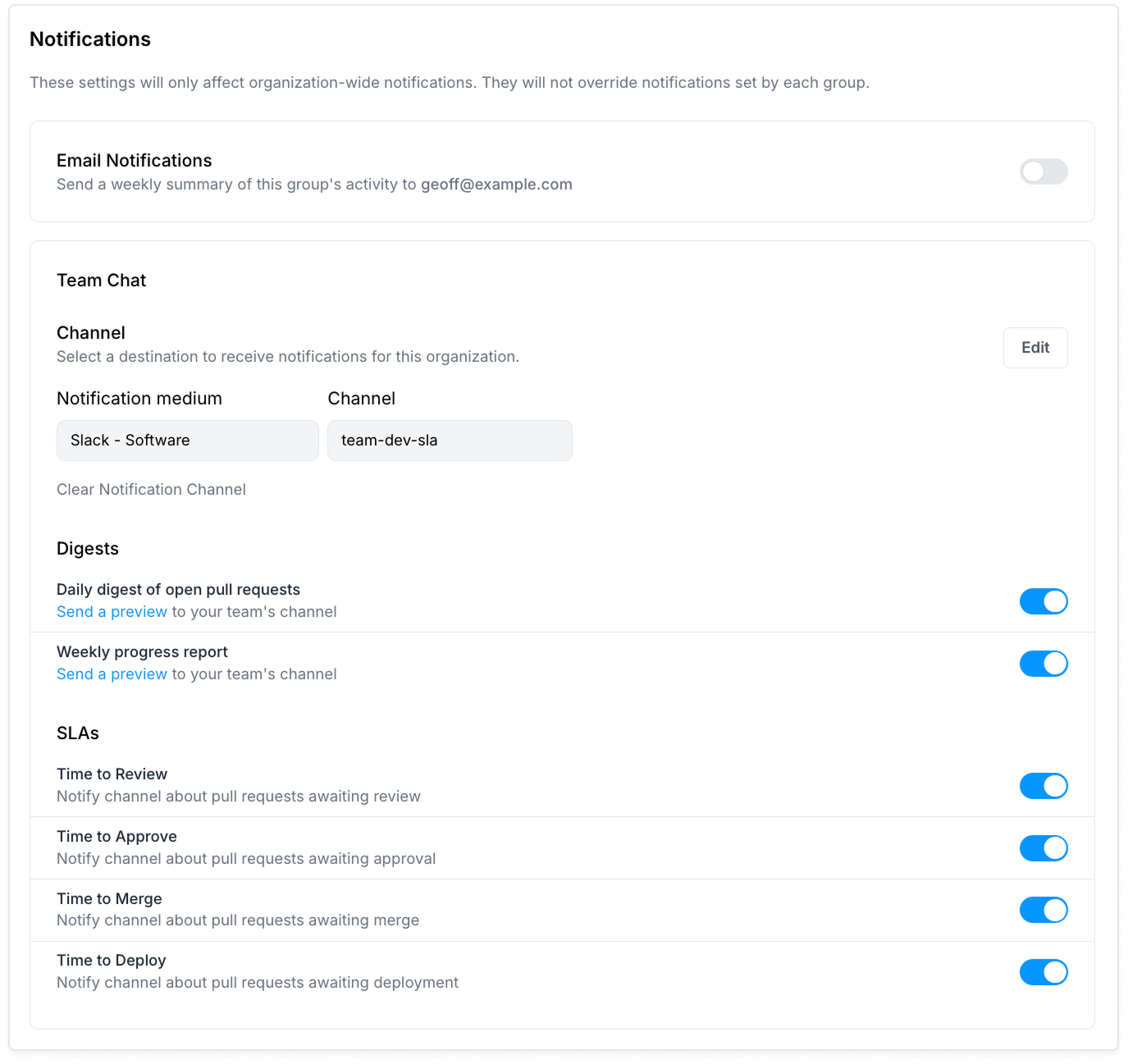
Alternatively, you can navigate to either the Open Pull Requests or Ready to Deploy page, filter to the group you want, and click the notification bell in the SLAs section. This opens a modal where you can toggle notifications on or off.
Commands
Pull requests
See a list of your organization’s open pull requests, including their age, status, author, and link. Start a group review in a new channel or merge pull requests.
Type /pull_requests to view open pull requests.
Connect accounts
Create an Antenna account and connect GitHub and Slack. This step is required to generate a standup message and mention team members in notifications. If you do not currently have an account, you will be prompted to create one with GitHub.
Type /connect_accounts to create an Antenna account or connect an existing one. You will also be prompted to connect your personal GitHub account.
Standup
Automatically generate a message with your open and merged pull requests from the previous day. You can edit your message before sending it.
Type /standup to begin drafting a standup message.
Antenna help
View information about Antenna and tips for getting the most out of our app for Slack.
Type /antenna_help to get help with the Antenna app.
Removing the App
To remove the Antenna app from your Slack workspace, follow the steps in Slack’s help documentation .
If a Workspace Owner has enabled app approval for your workspace, only Workspace Owners and app managers will be able to remove apps.