Cursor
Antenna automatically tracks AI coding metrics from Cursor by pulling data from Cursor’s APIs. You get insight into adoption, activity, and the impact of Cursor on your team’s productivity.
Setup
- Create a Cursor Admin API key (see Creating an Admin API key below).
- In Antenna, go to Settings > Sources > Add source.
- Find Cursor and click Connect.
- Paste your API key.
- Click Connect.
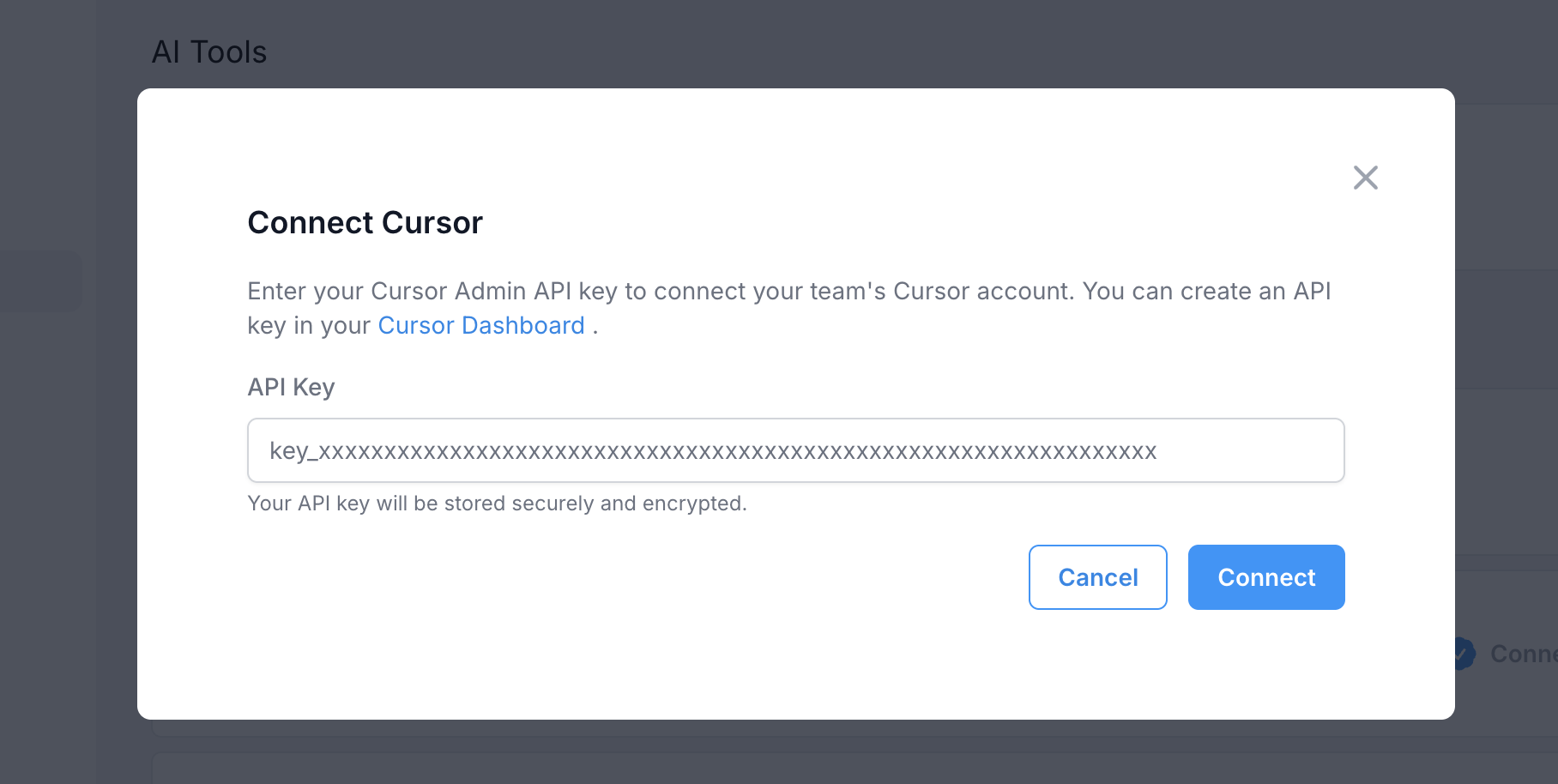
Cursor API keys do not expire and do not need to be refreshed. There is no history limit, so all of your Cursor history will be available.
Creating an Admin API key
This integration uses the Cursor Admin API. You need an API key that has access to your team’s data.
- The Admin API uses Basic Authentication with your API key as the username.
- For details on creating API keys, authentication methods, rate limits, and best practices, see the API Overview .
- For a full list of Admin API endpoints, see the Admin API documentation.
Data collected
We pull from the Cursor Admin API:
| Purpose | Endpoint |
|---|---|
| Team members | GET /teams/members |
| Daily usage data | POST /teams/daily-usage-data |
| Usage events (tokens, costs, models) | POST /teams/filtered-usage-events |
| Spend per user | POST /teams/spend |
We use the team members response to sync your Cursor team (names, emails, roles) and match usage to Git users. For full parameter and response details, see the Admin API endpoints .
Last updated on