Entra Single Sign-On
Antenna supports SSO via Entra. Please note: our Entra integration is only available on our Business plan and is not available during the free trial.
Prerequisites
- Make sure you are logged in to Entra as an administrator.
- Make sure you are logged into Antenna as an administrator.
Entra Setup
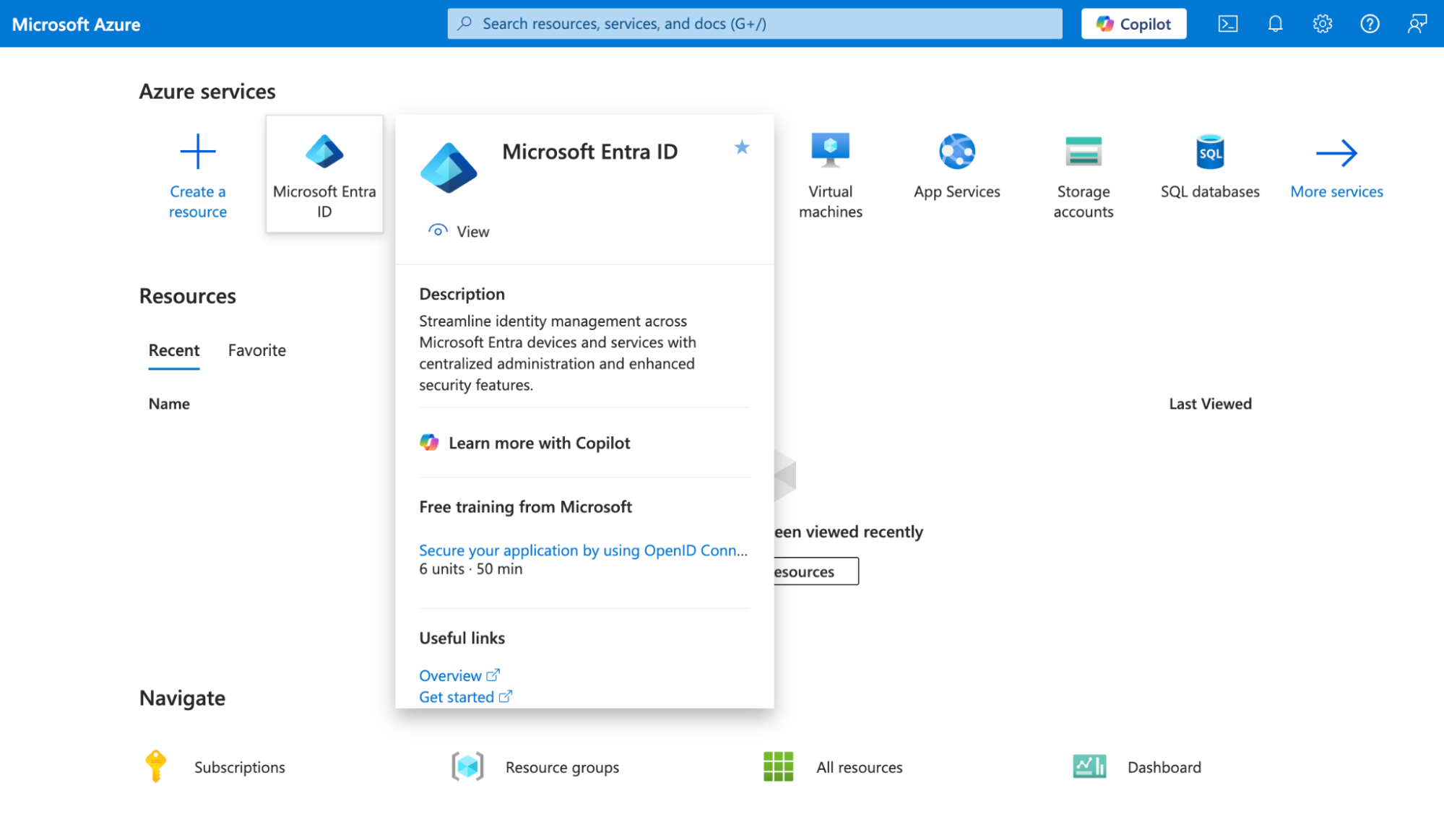
- Log in to Microsoft Azure
- Navigate to Entra ID
-
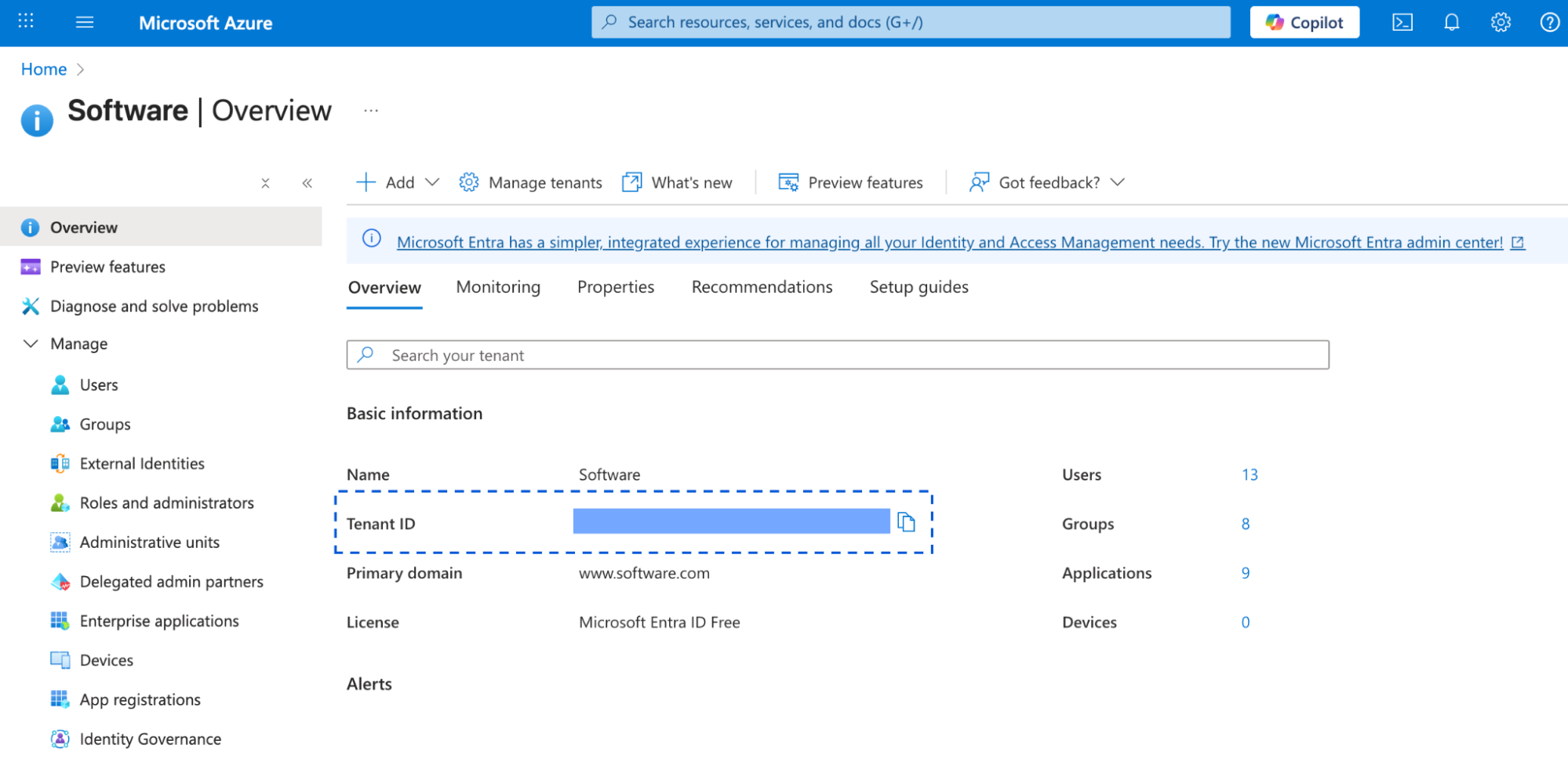
Copy your Tenant ID
-
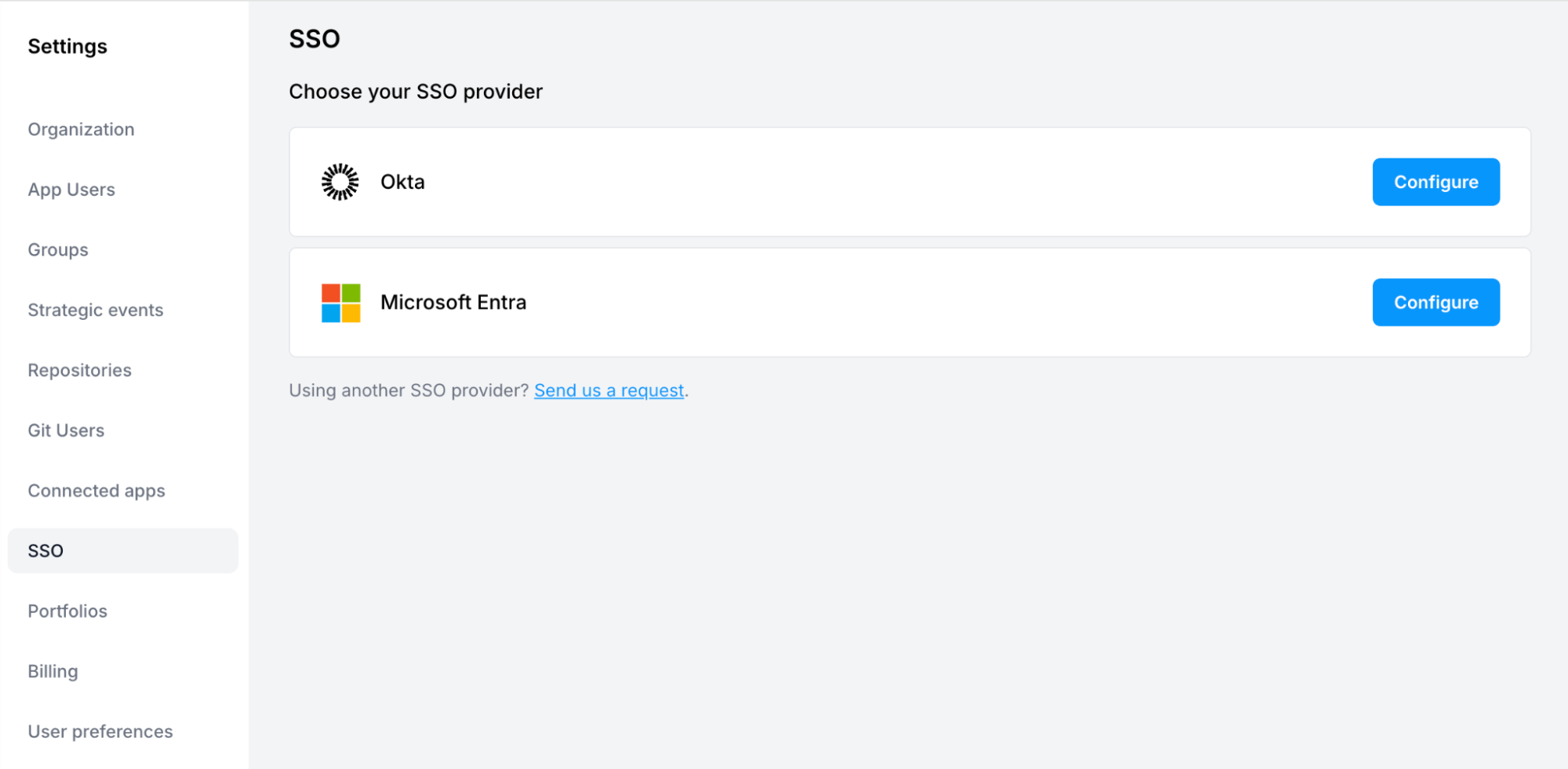
On app.antenna.dev , go to Settings > SSO
-
Click Microsoft Entra >> Configure
-
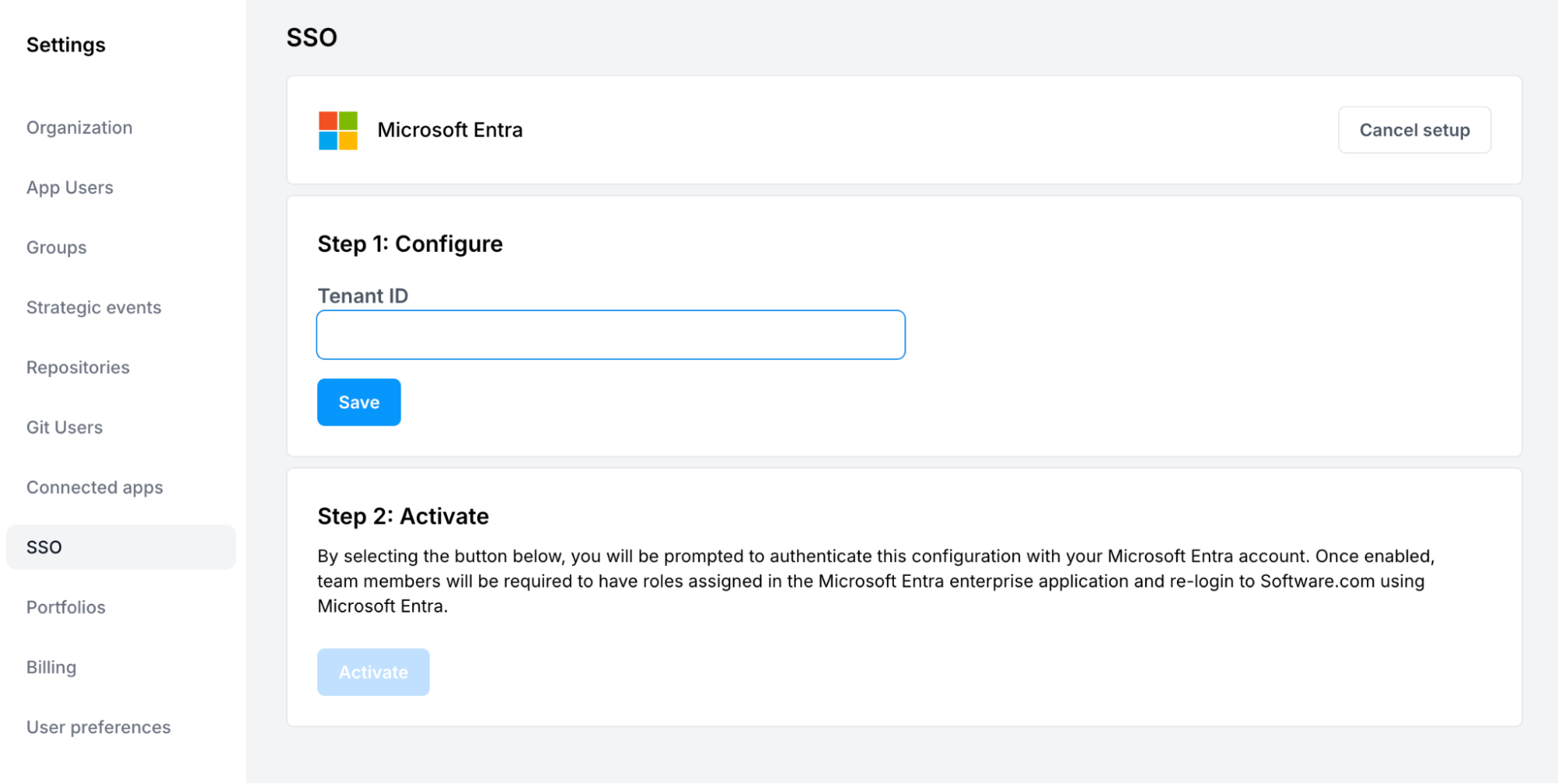
Paste in your Tenant ID and click Save
-
Click Activate
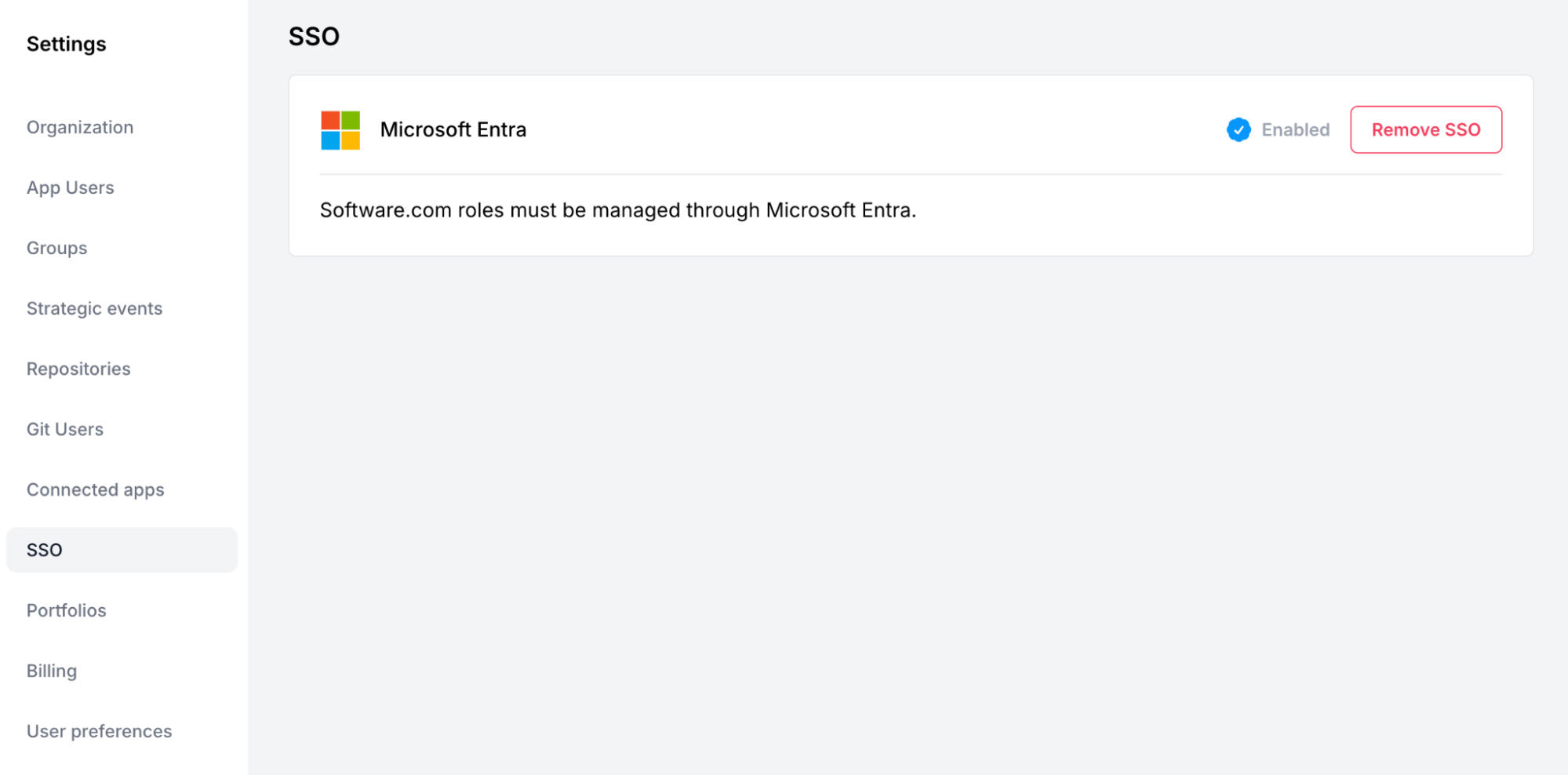
Once you complete these steps, all organization members will be required to log in through Entra to access Antenna, including the administrator that set up Entra.
Roles and Permissions
Permissions are automatically inherited from the app role each user is assigned on the Antenna enterprise application in Entra. Antenna reads the role from the sign-in token on every login, so Entra is the source of truth for who can access Antenna and what they can see.
App Roles, Not Entra Groups
Antenna only recognizes app roles assigned on the Antenna enterprise application. Your Entra groups are specific to your tenant and mean nothing to Antenna on their own — a user in a group named “Admin” is not an Antenna Admin unless that group (or the user) is assigned the Admin app role on the Antenna application.
The Antenna application exposes four app roles, which map directly to Antenna roles:
| App role in Entra | Antenna role |
|---|---|
| Admin | Admin |
| Director | Director |
| Manager | Manager |
| Contributor | Contributor |
Entra’s built-in Default Access role is not an Antenna role. Users assigned only Default Access sign in without a role and receive no access.
Assigning App Roles
Assigning users and roles is a standard Entra step for any enterprise application — it is step 1 of Getting Started on the application’s Overview page.
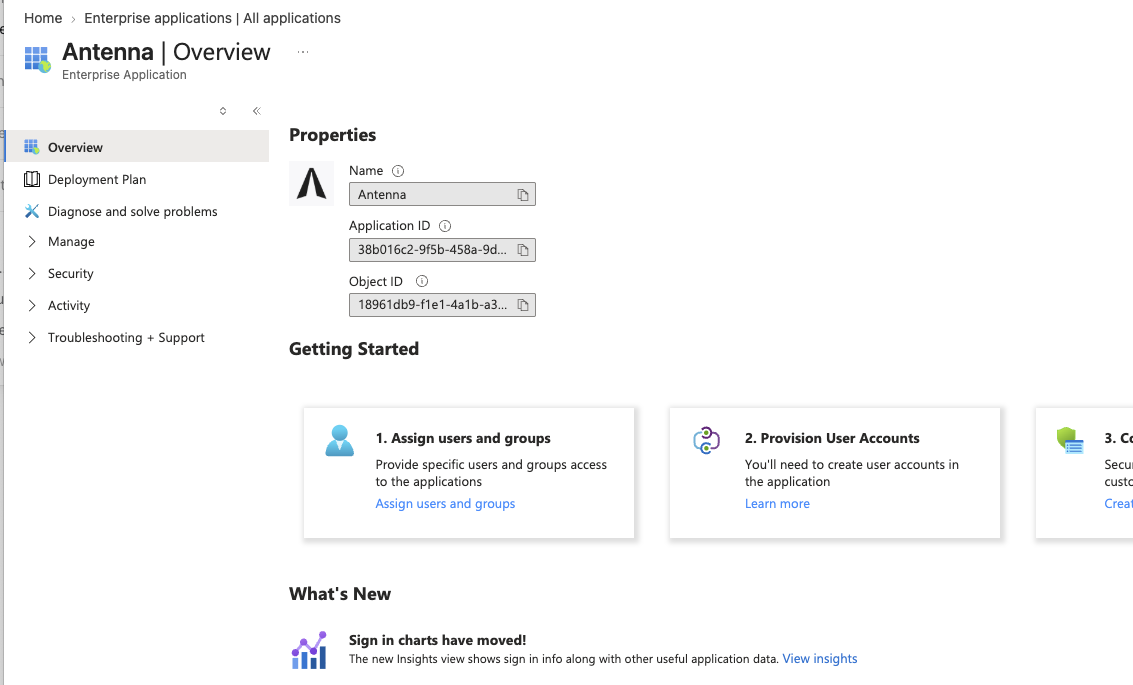
- In Microsoft Azure, go to Entra ID > Enterprise applications and open the Antenna application.
- Go to Users and groups and click Add user/group.
- Select the users or groups to assign.
- Under Select a role, choose Admin, Director, Manager, or Contributor, then click Assign.
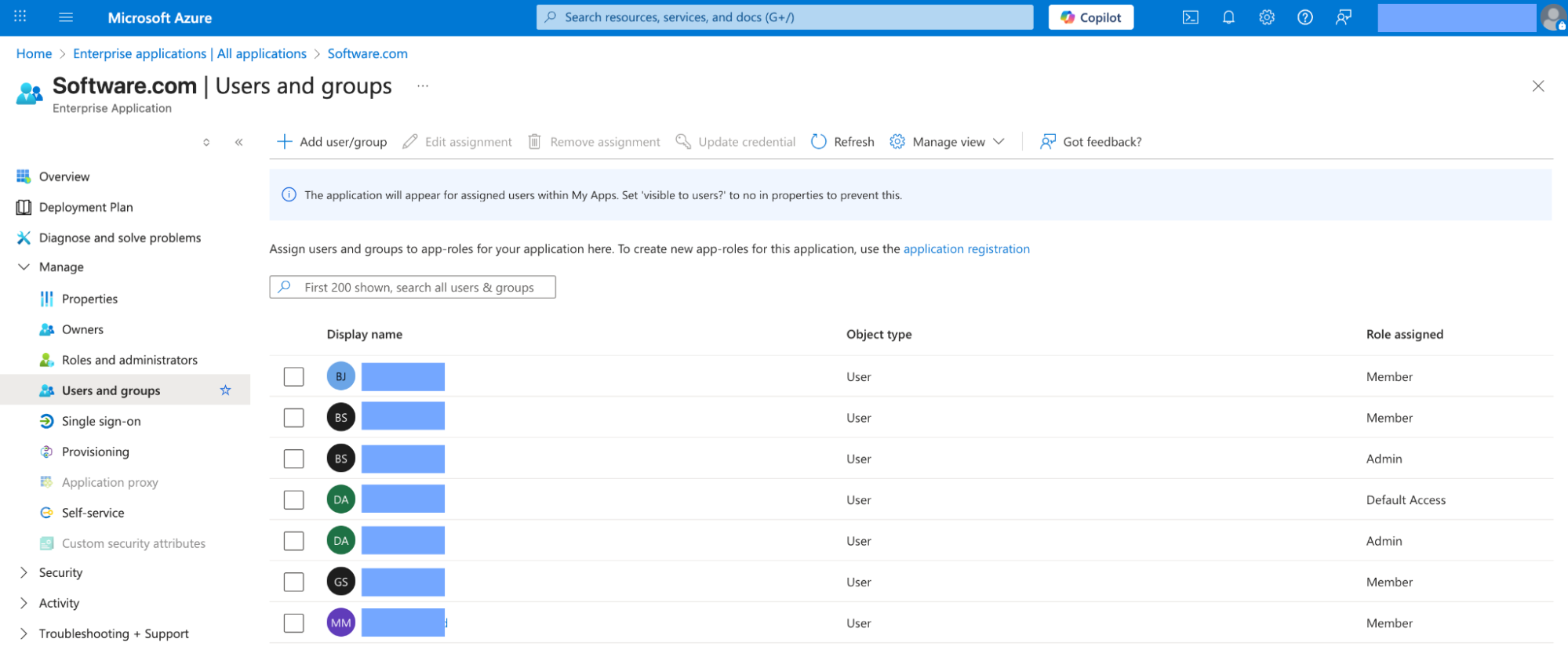
To map an existing Entra group to an Antenna role, assign the group itself to the app role in step 3 — for example, assign your Admin group to the Admin app role. Every member of that group then signs in to Antenna as an Admin.
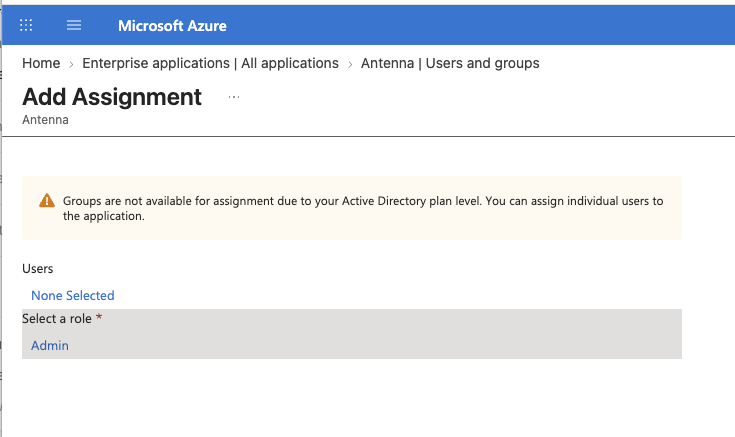
Assigning groups to app roles requires a paid Microsoft Entra ID plan (P1 or P2). On the free plan, Entra shows Groups are not available for assignment due to your Active Directory plan level and you must assign individual users.
Entra also does not include app roles for nested group membership. If you assign a group to an app role, users must be direct members of that group.
How Roles Sync
- Roles are applied on every sign-in. If you change a user’s app role in Entra, the new role takes effect the next time they sign in to Antenna.
- Because Entra is the source of truth, role changes made in Antenna under Settings > App Users are overwritten at the user’s next sign-in.
- If a user is assigned more than one app role, Antenna applies the most permissive one.
- Users with no app role are not granted access, so the Default role for new members setting on the SSO settings page does not apply to Entra connections.
Troubleshooting
A user signs in but has no access
The user completes Entra sign-in successfully but does not land in your enterprise — they see no data, or they are prompted to create a new organization. This happens when their token arrives with no Antenna app role, which Antenna treats as no access.
Check the following in Entra, on the Antenna enterprise application:
- The user appears under Users and groups with Admin, Director, Manager, or Contributor in the Role assigned column. Default Access is not enough.
- If access is meant to come from a group, that group is assigned to an app role, and the user is a direct member of it rather than a member of a nested group.
After the app role is assigned, the user signs out and signs back in to pick it up.
Removing Entra SSO
After activating Entra SSO, you will see the enabled connection and an option to remove it on the settings page for your organization on Antenna.
If you remove SSO from your organization, roles and permissions will no longer be managed through Entra. Users will no longer be restricted to the configured tenant and can log in through other authentication methods (e.g. Microsoft, Google) as long as they are a member of the organization on Antenna.