Microsoft Teams
The Antenna app for Microsoft Teams keeps your team informed with automated notifications, digests, and reminders across code review and deployment workflows.
Setup
If you’re new to Antenna, you will need to first create an account and connect to your Git provider.
Next, connect Microsoft Teams from your organization’s settings. Select the Connected apps tab in the navigation menu and click Connect next to Microsoft Teams. You will be redirected to Microsoft Teams where you can choose your workspace and review permissions before installing the app. You can also install directly from the Microsoft Teams marketplace .
Features
Deployment previews
When you’re ready to ship, send a preview of your upcoming deployments to team members in Microsoft Teams.
We automatically detect how your pull requests are deployed. Select a channel you want to notify of an upcoming deployment and we’ll send a notification to your team with pull requests that are ready to be deployed.
Digests
Share updates with your team and see how your team is tracking against your objectives.
Subscribe to team digests to get a daily rollup of work that’s in progress and a weekly report of your team’s merged pull requests. Each team can subscribe to their own daily and weekly digests, which are sent to their team Microsoft Teams channel.
SLAs
Get automated reminders when pull requests waiting on review, approval, merge, and deployment do not meet your SLAs.
SLAs help you define how your team works together. For example, you can create an SLA to review pull requests in under a day. Every team can set their own SLAs, so you can figure out what works best for your team. Out of the box, we automatically suggest SLAs for your team, but you can customize each one to fit your needs.
Configure Notifications
Microsoft Teams notifications can be managed from Settings or directly from the Open Pull Requests and Ready to Deploy pages.
To configure organization-level notifications, go to Settings, select Organization, and scroll to the Notifications section. Toggle digests and SLAs on or off.
To configure notifications for a specific group, go to Settings, select Groups, and click on a group. Open the Notifications tab and toggle digests and SLAs on or off.
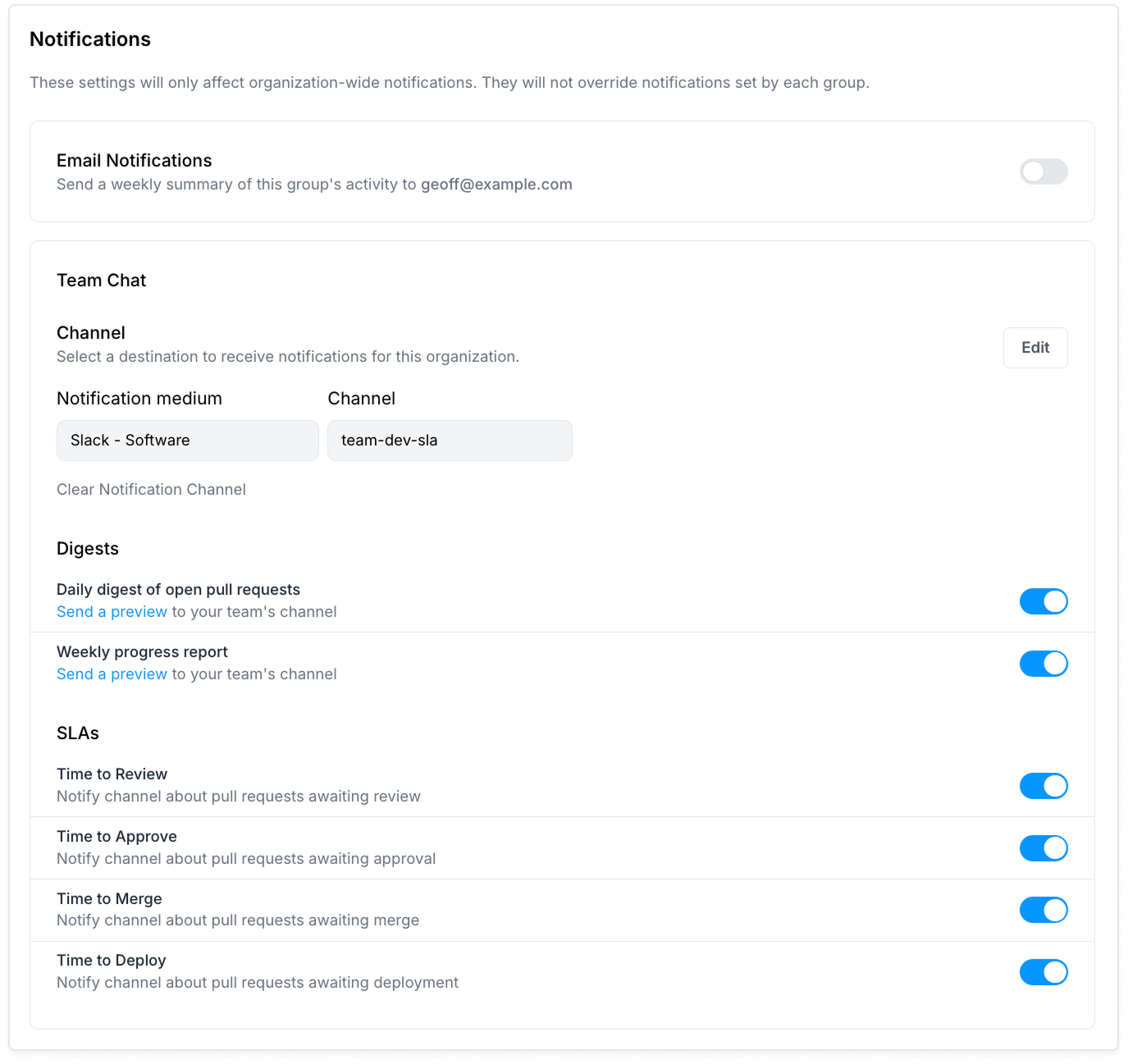
Alternatively, you can navigate to either the Open Pull Requests or Ready to Deploy page, filter to the group you want, and click the notification bell in the SLAs section. This opens a modal where you can toggle notifications on or off.
Removing the App
To remove the Antenna app from your Microsoft Teams workspace, follow the steps in Microsoft’s help documentation .
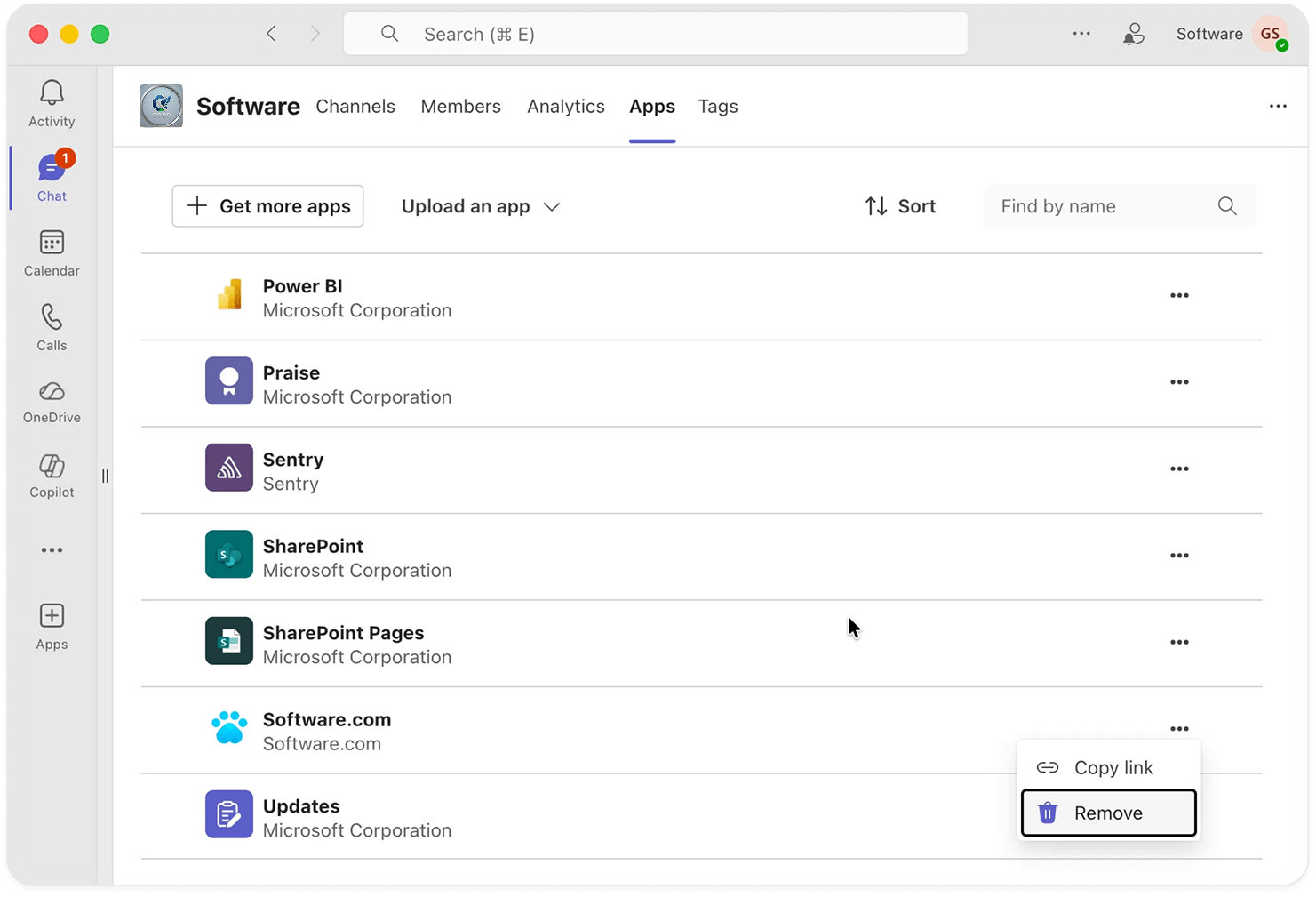
You can also follow these steps directly:
- Open Microsoft Teams and find the team you want to remove Antenna from.
- To the right of the team, select More > Manage team.
- Select Settings.
- Select Apps at the top of the window.
- Find Antenna and select Remove to the right of the app.